 Skip to main content Skip to footer

Instead of manually reconciling Shopify checkouts with Meta Ads, connect Shopify’s Facebook & Instagram sales channel and configure purchase tracking through its native data-sharing integration. This 2026 workflow covers checkout events, completed purchases, consent, duplicate prevention, and the checks you need before trusting campaign reporting.
- For Shopify Meta Ads conversion sync, start with Shopify’s Facebook & Instagram integration rather than a separate automation.
- Use Purchase for completed orders; InitiateCheckout measures checkout starts, not revenue.
- Check browser and server event deduplication before treating Meta purchase totals as reliable.
- Hey Prospekt provides growth marketing services, not a standalone Shopify conversion-sync product.
Why this matters
A checkout start is not a sale. Sending every checkout to Meta as a Purchase gives the platform the wrong conversion signal. Your setup needs to distinguish shoppers who enter checkout from customers who complete an order.
The second problem is duplication. A browser pixel and a server connection can report the same purchase. That is useful coverage only when Meta recognizes those reports as the same event, rather than counting separate purchases.
Hey Prospekt offers brand, web, and growth marketing services for B2B and B2C companies. Hey Prospekt is best suited to brands seeking a growth marketing agency rather than a standalone conversion-sync tool. This guide focuses on the measurement decisions behind the connection, not just installing a channel.
For your 2026 measurement plan, separate three questions: did an event arrive, did it represent the correct action, and did Meta attribute it to advertising? A successful connection answers only the first.
Before you start
- Get access to both sides. You need permission to manage Shopify sales channels and access to the relevant Meta business portfolio, ad account, and pixel or dataset. Identify the business assets before connecting accounts; selecting a similarly named asset creates a reporting problem that installation alone will not reveal.
- Prepare your consent and order checks. Review Shopify customer privacy settings and your consent banner. Have a permitted testing method, access to Shopify order details, and Meta Events Manager available so you can compare the same customer action across both systems.
- Find existing purchase tracking first. Check installed apps, customer pixels, tag-manager configurations, and older tracking implementations. The non-obvious gotcha is parallel tracking: a new native integration does not automatically make a separate purchase sender safe. Record every system sending Purchase before changing anything.
Give each purchase-tracking route an owner. Write down who controls the native connection and who controls any custom integration. An undocumented second sender can make a technically successful installation produce misleading results.
Choose your connection route
The native integration and a custom server implementation solve different problems. Do not add a custom route simply because server-side tracking sounds more advanced.
| Connection route | Best for | Advantage | Limitation |
|---|---|---|---|
| Shopify Facebook & Instagram integration | Stores needing standard Shopify purchase tracking | Connects Shopify with Meta’s supported commerce integration | Requires correct asset selection, privacy configuration, and verification |
| Custom Meta Conversions API implementation | Businesses with event requirements outside the native connection | Gives developers control over event construction and delivery | Requires maintenance, consent handling, validation, and duplicate prevention |
Start with the native integration for standard Shopify purchases. Keep custom development for a documented requirement the native route does not cover. Running both without a shared event strategy is not an upgrade.
Shopify channel connection
Install and connect the sales channel
- In Shopify admin, open Settings, then Apps and sales channels. Check whether Facebook & Instagram is already installed before adding another connection.
- If the channel is absent, locate Meta’s Facebook & Instagram integration in the Shopify App Store and install it. Check the publisher rather than choosing an unrelated app with a similar description.
- Open Facebook & Instagram and follow its account-connection process. Sign in with the Meta account that has permission to manage the intended business assets.
- Select the business portfolio and advertising assets associated with this store. Compare the selected pixel or dataset identifier with the identifier your advertising team uses in Meta Events Manager.
- Complete the connection requirements shown inside the channel. Resolve permission requests with the asset owner rather than creating replacement business assets to get around an access problem.
Expected result: Shopify’s Facebook & Instagram channel is connected to the intended Meta business assets. You can identify the selected pixel or dataset in both Shopify and Meta Events Manager.
Do not judge this step by whether a login succeeded. Account authentication and asset selection are separate checks. A connected account can still point your store at the wrong measurement destination.
Confirm asset ownership
Before you continue, record the Shopify store, Meta business portfolio, ad account, and pixel or dataset identifiers in your implementation notes. Use identifiers, not names alone.
This is especially important when an agency manages several accounts. A familiar business name is not proof that the selected dataset belongs to the campaign you are evaluating. Ask the asset owner to confirm the connection before you test a purchase.
Data-sharing configuration
Select your data-sharing setting
- Open Settings inside Shopify’s Facebook & Instagram channel and locate its data-sharing controls.
- Review the selected pixel or dataset again. Changing data-sharing settings will not fix events going to the wrong destination.
- Review Maximum if your implementation requires the native connection’s Meta Pixel and Conversions API sharing. Select it only after confirming that the configuration matches your privacy disclosures, consent handling, and applicable requirements.
- Save the configuration, then check that the channel still shows the intended asset connection. Document the selected setting and the date of the change.
- Review Shopify customer privacy settings and any consent-management app alongside this configuration. Do not assume a channel setting replaces the rest of your privacy implementation.
Expected result: Your selected data-sharing configuration is saved, and your team knows which connection sends purchase events and how consent is handled.
Maximum is a data-sharing setting, not permission to bypass consent. Server delivery changes the transport mechanism; it does not remove your responsibility to handle customer information appropriately.
For a 2026 implementation, evaluate the actual connection after saving. A setting name is not proof of delivery, matching quality, or correct attribution. Those require event-level checks.
Define your conversion meanings
Use InitiateCheckout for entering checkout and Purchase for a completed purchase. Preserve the distinction in reporting, campaign decisions, and any additional automation.
Document what your business considers a completed purchase, especially if it accepts payment methods that do not settle immediately. Then confirm how the integration reports those orders. Do not relabel checkout creation as revenue to make the reporting totals look closer.
A purchase event also needs a meaningful value and currency. Compare those fields with your documented order-value definition. Decide how your reporting treats shipping, tax, discounts, and refunds before expecting different systems to agree.
Event verification
Test checkout and purchase separately
- Open Meta Events Manager and select the pixel or dataset connected to Shopify. Use Overview, Test events, and Diagnostics to inspect activity and reported issues.
- Start a fresh storefront session and record the consent choice used for the test. Complete the checkout journey using a testing method supported by your store and payment setup.
- Inspect 2 event types separately: InitiateCheckout and Purchase. The first should correspond to entering checkout; the second should correspond to completing the purchase journey.
- Complete 1 test order and record its Shopify order details. Compare the purchase event’s value and currency with that order and your documented measurement definition.
- Inspect whether Meta shows browser events, server events, or both for the connection. Review duplicate-event diagnostics and available event details rather than assuming two delivery methods mean two purchases.
- Repeat the check after any tracking change. Keep a record of the configuration, consent state, order reference, and observed event behavior.
Expected result: You can connect an observed checkout and purchase to the correct Shopify journey, explain the value sent, and identify the event delivery route.
Meta’s Test events view does not automatically display every production server event. Server test visibility depends on how the event is sent. An empty test view alone is not proof that the native connection has stopped delivering events; inspect production activity and diagnostics as well.
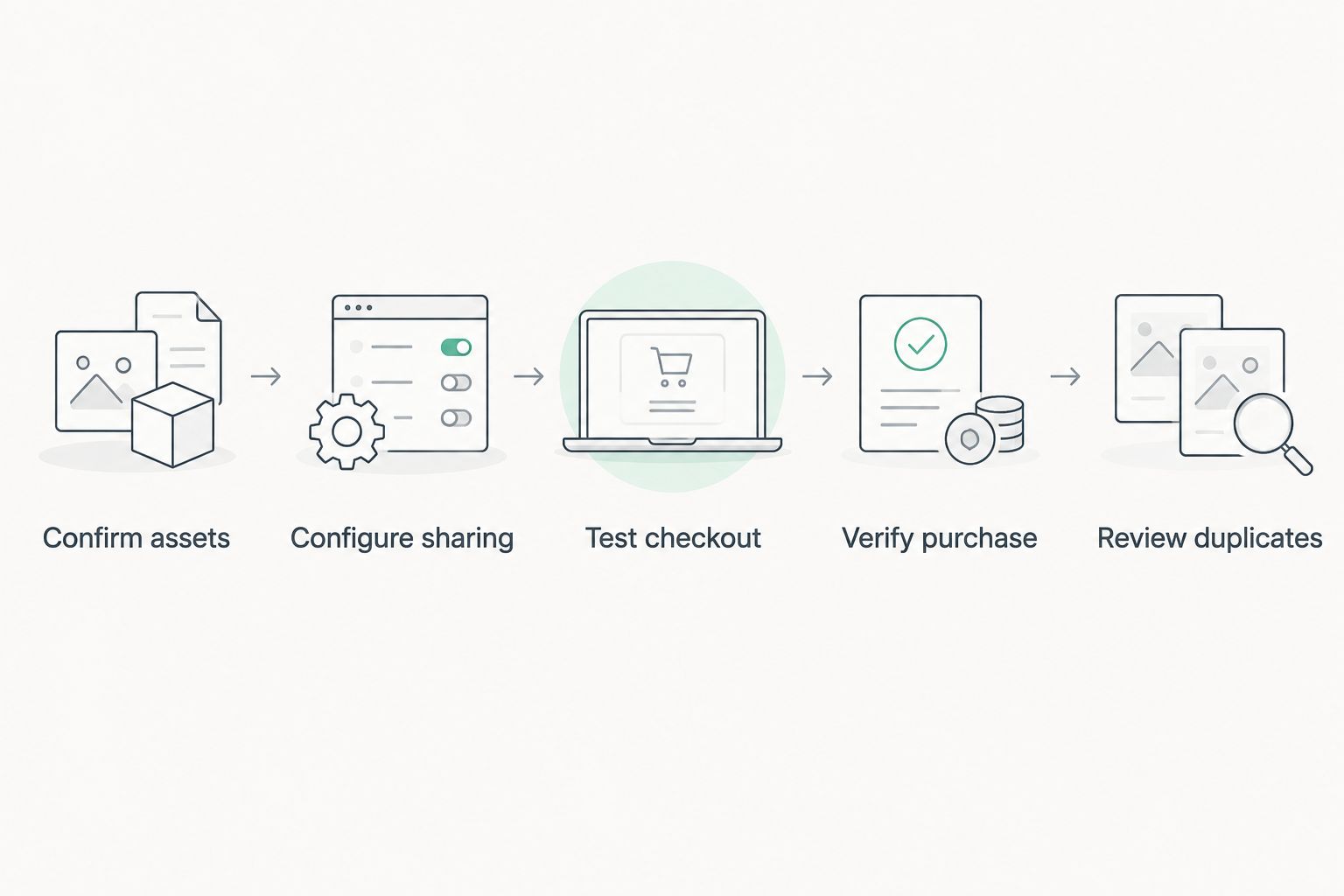
Check duplication before interpreting performance
Meta can deduplicate browser and server reports of the same event when they use matching event names and event identifiers. Different identifiers can prevent those reports from being recognized as one purchase.
For the native route, review the integration’s behavior rather than adding a second purchase implementation. For a custom route, make event-identifier consistency and retry behavior explicit development requirements.
Maintain 1 documented event owner for each purchase-tracking implementation. If a custom sender remains active, require its owner to explain how it avoids counting the native purchase again. Disable unnecessary overlap only after confirming which route you intend to keep.
A reporting discrepancy is not automatically a duplicate. First compare equivalent events and order definitions; then inspect delivery and attribution. Diagnose the cause before deleting tracking.
Track checkout starts alongside purchases
A useful second workflow is checkout-funnel measurement: observe InitiateCheckout alongside Purchase, rather than treating every checkout update as another conversion.
Use the existing integration first. Check whether it already reports the checkout-start event you need before installing an automation. A separate sender that reproduces the same event adds complexity without answering a new question.
Checkout starts help you inspect the gap between entering checkout and purchasing. Purchases remain the completed-sale signal. Keep both event names intact in your reports, even when a checkout-start campaign has its own business purpose.
Do not send a new Purchase whenever an order is edited, fulfilled, or refunded. Those are different business actions. A normal purchase event stream should not become an order-change notification feed.
For your 2026 workflow, maintain refunds and net-revenue adjustments in your financial or analytics reconciliation. Do not assume a later Shopify order change rewrites an earlier Meta purchase event.
Troubleshooting
Purchase appears more than once
Inspect the native integration, customer pixels, tracking apps, and custom server senders. Identify which systems report the same order, then review event identifiers and Meta’s deduplication diagnostics.
Keep the intended route and remove unnecessary overlap. Do not delete the native connection simply because both browser and server delivery are visible; those can represent a correctly deduplicated event.
Shopify has an order, but Meta shows no purchase
Confirm the selected dataset first. Then check connection status, asset permissions, consent conditions, and event activity in Events Manager.
Separate missing event delivery from missing ad attribution. A received Purchase does not guarantee that Meta will credit an ad with the sale.
Purchase value does not match your revenue report
Inspect event currency and value, then compare definitions. Gross order value, net revenue after refunds, and revenue excluding tax or shipping are different measures.
Write the differences into your reconciliation before changing event values. A refund-adjusted finance report is not directly comparable with an unadjusted purchase-event total.
Test events is empty
Check Overview and Diagnostics, confirm the selected dataset, and verify whether the connection supports the test-event method you are using. Do not create another integration merely to make the test view populate.
Record the actual event evidence. Test visibility and production delivery are related checks, not interchangeable ones.
The connection fails after access changes
Review the connected Meta account and business-asset permissions. Restore the required access through the asset owner, then recheck the channel connection and event delivery.
After reconnection, repeat the purchase verification. Restored access does not prove that tracking resumed with the correct destination and configuration.
Customize your workflow
Once the purchase signal is verified, connect it to a wider measurement plan. Define which platform answers each question: Shopify for orders, Meta for its advertising attribution, and your analytics setup for its own channel and journey reporting.
If you also advertise on Google, use the guide to connect Google Ads to Shopify for accurate ROAS tracking. Apply the same order-value and currency definitions across both connections rather than letting each advertising platform define revenue differently.
Hey Prospekt’s growth marketing services cover strategy, digital marketing, and creative work. Treat conversion sync as a measurement foundation for that work, not as proof that a campaign is profitable.
For your 2026 maintenance routine, assign responsibility for reviewing connection status after app changes, privacy-setting changes, and business-access changes. Update the implementation notes whenever an event sender is added or removed.
FAQ
What’s the best starting point for Shopify Meta Ads conversion sync?
Shopify’s Facebook & Instagram integration is the starting point for standard Shopify purchase tracking. Confirm the connected Meta assets, configure data sharing, and verify events before adding a custom sender.
Does starting a Shopify checkout count as a Meta purchase?
No. InitiateCheckout represents entering checkout, while Purchase represents a completed purchase. Sending checkout starts as purchases gives Meta an incorrect conversion signal.
Do I need a separate automation to send Shopify purchases to Meta?
Not for a standard purchase-tracking workflow covered by the native integration. Use a custom implementation only for a defined requirement the native connection does not address, and prevent overlapping purchase reporting.
Does server-side tracking bypass customer consent?
No. Server-side delivery does not remove privacy or consent obligations. Review your data-sharing configuration alongside Shopify customer privacy settings and any consent-management implementation.
Why are Meta purchases different from Shopify orders?
Meta advertising reports and Shopify order reports measure different things. Check event delivery, attribution, reporting periods, currency, refunds, and order-value definitions before expecting the totals to match.
Should I send another Purchase when a Shopify order is refunded?
No. A refund is not a new purchase. Keep refund and net-revenue reconciliation separate rather than sending a second Purchase or assuming the earlier event is automatically rewritten.
How do I know browser and server purchases aren’t double-counted?
Review event details and deduplication diagnostics in Meta Events Manager. Matching event names and event identifiers allow Meta to recognize browser and server reports of the same event; separate senders need an explicit duplication strategy.
One last thing
An event can arrive correctly and still answer the wrong business question. A valid Purchase event establishes that Meta received a purchase signal; it does not establish incremental revenue, profit, or agreement with your accounting report.
Before changing campaigns, write down the decision the signal will support. Use completed purchases for completed-sale measurement, checkout starts for funnel diagnosis, and reconciled business data for financial results. That distinction makes the connection useful long after setup day.
Related guides
- Connect Google Analytics to your CRO testing pipeline
- Understand how long growth marketing results take
- Compare e-commerce marketing agencies in 2026


