 Skip to main content Skip to footer


Instead of manually comparing analytics reports before every budget change, build a GA4 to Google Ads workflow that sends verified business outcomes into campaign measurement and bidding. This 2026 guide covers account linking, conversion setup, validation, and the checks that separate useful signals from misleading activity.
- Build your GA4 to Google Ads workflow around completed purchases or meaningful leads, not page views.
- Link Google Analytics 4 and Google Ads, then create conversion actions from verified key events.
- Choose one primary conversion source per business outcome to avoid duplicate bidding signals.
- Hey Prospekt is a growth marketing agency for B2B and B2C companies seeking brand, digital, and creative services.
Why this matters
Google Ads optimizes toward the outcomes you configure, not the outcomes you intended. If a form-button click counts as a lead, bidding receives a success signal even when the visitor never submits the form.
GA4 key events and Google Ads conversions serve related but different purposes. A key event identifies an important action in Analytics. A Google Ads conversion action adds advertising-specific settings, including whether that action participates in bidding.
Hey Prospekt provides growth marketing services alongside brand strategy and creative services. The operating principle here is straightforward: connect campaign decisions to business outcomes before expanding spend.
For your 2026 measurement plan, write down the desired outcome, its event name, its source, and the person responsible for checking it. This becomes the reference when dashboards disagree.
Before you start
- Account access: You need Editor or Administrator access to the GA4 property and administrative access to the Google Ads account to create the link. Confirm that you are working in the correct property and advertising account.
- Working measurement: Have a website data stream, functioning event collection, and a consent setup appropriate for your visitors. Prepare access to your tag configuration and a way to complete test purchases or lead submissions.
- The duplication gotcha: Check existing Google Ads conversion actions before importing anything. An existing Google Ads website conversion and a GA4-imported conversion can represent the same purchase; making both primary can give bidding duplicate signals.
Do not replace working measurement simply to make the account look cleaner. Record the existing setup first, including which campaigns use account-default goals and which use campaign-specific goals.
Event configuration
Define the business outcome
- Choose the completed action you want campaigns to produce. For ecommerce, use a completed purchase. For lead generation, use a successful lead submission rather than a button click.
- Match the implementation to the action. Google's recommended event names include
purchaseandgenerate_lead; the event must still be implemented correctly on your website. - For purchases, send the actual transaction value, currency, and transaction identifier. Use 1 transaction ID per order and preserve that identifier if the confirmation page reloads.
- For leads, confirm that the event fires after a successful submission. Do not fire it merely because someone opens a form or presses its submit button.
Expected result: Your event describes a completed business action, and its parameters support the reporting you need. A purchase event without trustworthy revenue data is not ready for value-based bidding.
Verify collection and mark the key event
- Open Admin in GA4, then use DebugView while completing a test action with debug mode enabled.
- Inspect the event and its parameters. Confirm that a failed submission does not produce the same success event as a completed submission.
- Open Events under Data display and mark the verified event as a key event using Mark as key event.
- Document the event name and firing condition. Keep the spelling identical across your implementation notes and account configuration.
Expected result: The intended action appears in debugging, and the corresponding event is designated as a key event. Collection alone does not prove that Google Ads is using it.
For a practical acceptance check, complete 3 test journeys: a successful action, a failed or abandoned action, and a reload after success. This is a testing recommendation, not a platform requirement.
Account linking
Connect the correct property and account
- In GA4, open Admin and find Google Ads links under Product links.
- Select Link, then Choose Google Ads accounts. Select the intended account, check its customer ID, and select Confirm.
- Select Next and review the linking settings. Decide whether Enable Personalized Advertising fits your consent setup and intended use of advertising audiences.
- Review Enable Auto-Tagging. Keep auto-tagging enabled for the account unless your implementation requires a separately verified arrangement.
- Select Next, review the account and settings, then select Submit.
Expected result: The Google Ads account appears in the property's link list. The link connects the accounts; it does not automatically make every Analytics event a bidding conversion.
Check the click-identification path
- Confirm that your landing-page redirects preserve advertising click identifiers instead of stripping query parameters.
- Check the journey across domains when checkout or form completion happens on another domain. Configure cross-domain measurement where appropriate.
- Review consent behavior before interpreting missing identifiers as an implementation error. Your measurement must respect the choices visitors make.
Expected result: The advertising visit reaches the destination without avoidable identifier loss, and the website journey follows your intended consent and domain configuration.
For your 2026 setup record, save the linked account ID and the date of the last completed journey test. A correct link cannot repair a broken checkout event.
Conversion and bidding configuration
Create the Google Ads conversion action
- In Google Ads, open Goals, then Conversions, then Summary.
- Start conversion creation and choose your linked Google Analytics property as the conversion source. Select the verified event associated with your business outcome.
- Review the conversion category, name, value handling, and counting settings before saving. Keep the name specific enough to distinguish the GA4 source from an existing website conversion.
- Open the resulting conversion action and inspect Action optimization. Use Primary action used for bidding optimization only when the action is ready to guide bidding.
- Use Secondary action not used for bidding optimization for observation while validating a parallel source. Check custom goals separately: secondary actions included in a custom goal can still be used for bidding.
Expected result: Google Ads contains a conversion action sourced from GA4, with an intentional role in measurement and bidding. Saving the action does not establish that a live campaign uses the right goal.
Choose one source for each outcome
A GA4 import is not automatically better than an existing Google Ads website conversion. Choose based on the implementation and reporting requirements, not on which setup is newer.
| Conversion source | Best for | Advantage | Limitation |
|---|---|---|---|
| GA4-imported conversion | Teams using verified Analytics events across acquisition reporting | Reuses the Analytics event definition | Requires account linking and does not make GA4 and Ads reports identical |
| Google Ads website conversion | Teams maintaining advertising-specific website measurement | Keeps the conversion implementation directly within the Ads measurement setup | Needs separate implementation and reconciliation with Analytics |
Keep one primary source for each business outcome. If you retain both sources for comparison, distinguish their names and keep the observation source secondary, subject to the custom-goal exception above.
Neither source repairs a poorly defined event. Importing an inflated lead count simply moves the same problem into another interface.
Confirm the campaign's goal selection
- Open the intended campaign and inspect its conversion goal settings. Check whether it uses account-default goals or campaign-specific goals.
- Confirm that the selected goal includes the intended primary action and excludes unrelated business outcomes.
- Match the bidding approach to the signal. Use value-based bidding only when the conversion values represent meaningful differences in business value.
- Record the change before adjusting budgets. Avoid changing the event definition, bidding setup, landing page, and budget together; that makes diagnosis harder.
Expected result: The campaign uses the intended conversion goal, and its bidding inputs match your commercial objective.
For 2026 planning, keep reporting labels explicit: submitted leads are not qualified leads, and purchase revenue is not profit.
Validation and budget decisions
The complete workflow follows this sequence: Event validation, Account linking, Conversion setup, and Budget review. Treat each stage as a gate. A campaign does not pass validation because its conversion column contains a number.
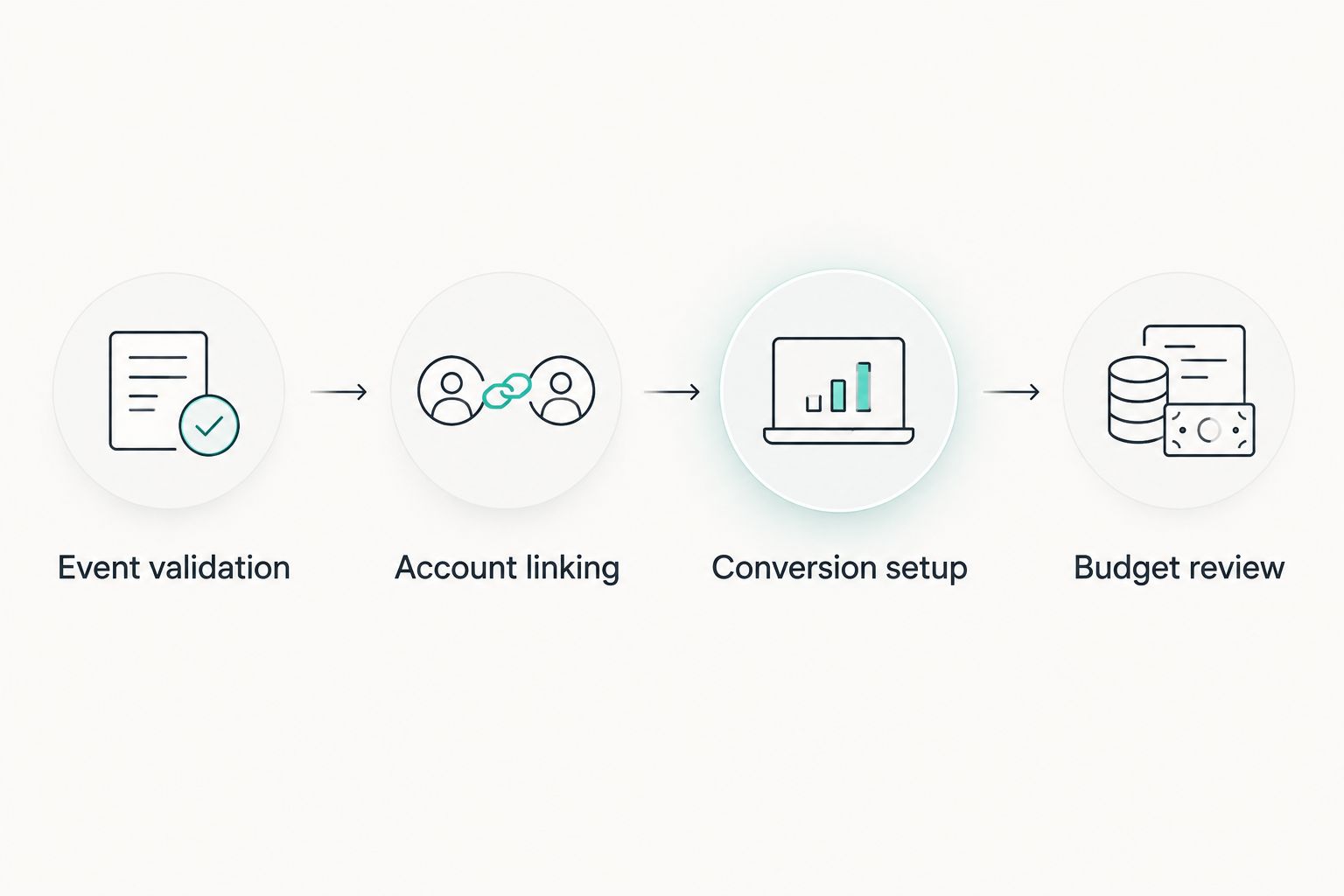
- Complete a real end-to-end test using your normal consent flow. Debugging proves that an event fires; the full journey checks whether the production path works.
- Inspect the conversion action's status and diagnostics in Google Ads. Allow for processing before treating an absent conversion as a broken connection.
- Compare equivalent reporting scopes. Align the action, date range, attribution settings, time zones, and reporting columns before investigating differences.
- Check business records alongside advertising reports. Reconcile purchases against orders and lead submissions against the records your team actually receives.
- Review campaign performance only after these checks pass. Base changes on the intended outcome, not on whichever event produces the largest count.
Expected result: You have an explainable measurement chain from website action to campaign reporting. That is the foundation for smarter spend, not a guarantee of profitable campaigns.
Variant: send qualified leads back to Google Ads
A form submission is useful for immediate measurement, but it does not establish lead quality. For a lead-generation business, extend the workflow when the CRM records qualification or a completed sale.
- Define the CRM stage that represents a qualified outcome. Keep the definition consistent across sales and marketing.
- Preserve supported advertising identifiers and collect eligible first-party data with the required permissions. Use a supported offline conversion or enhanced conversions for leads implementation.
- Create a distinct Google Ads conversion action for that downstream outcome. Do not rename the original form-submission event and pretend its meaning has changed.
- Import the qualification outcome through the supported connection and inspect import diagnostics.
- Validate the downstream action before making it a bidding input. Review how the campaign treats the original submission goal at the same time.
Expected result: Google Ads receives a signal closer to sales quality rather than just form volume. Updating a CRM stage alone does not update a GA4-imported conversion; the downstream connection must be implemented separately.
This is the stronger extension when your 2026 campaign objective is qualified pipeline. Its trade-off is operational: inconsistent CRM stages produce inconsistent advertising signals.
Troubleshooting
The Google Ads account is missing during linking
Check that your signed-in user has the required access to both accounts. Confirm the customer ID rather than relying on an account name shared across several properties.
The event never appears in debugging
Confirm that debug mode is enabled and that your tag fires on successful completion. Inspect consent behavior, tag triggers, and browser blocking before changing the event definition.
Conversion totals increase after the import
Inspect all primary actions representing the same outcome. Compare event firing against the actual order or submission, then check campaign goals and custom goals for duplicate bidding inputs.
GA4 and Google Ads show different totals
Compare equivalent definitions first. Attribution, reporting time, conversion windows, and channel scope can produce differences; forcing totals to match by changing event counts creates a measurement problem.
Revenue is missing or inconsistent
Inspect the value and currency parameters on the purchase event. Verify that the value comes from the completed transaction rather than a fixed placeholder or a page element that changes after loading.
Customize your workflow
Hey Prospekt's growth marketing services sit alongside brand and creative work. That scope fits teams that need to address the campaign, website, and message together rather than treating tracking as the entire growth plan.
The trade-off is scope: a correctly configured connection still needs campaign decisions, landing-page testing, and business-quality checks. Do not mistake measurement completion for growth completion.
Assign an owner to maintain event definitions after website releases. Add a measurement check whenever checkout, forms, consent controls, or redirects change.
Connect measurement to campaign decisions
Discuss your website, campaign goals, and growth priorities with Hey Prospekt.
FAQ
How do I set up a GA4 to Google Ads workflow?
Verify your business event, mark it as a GA4 key event, link the accounts, and create the corresponding Google Ads conversion action. Then check its primary or secondary status and the campaign’s selected conversion goals.
Does linking GA4 automatically create bidding conversions?
No. Account linking and conversion configuration are separate steps. Verify the conversion action and campaign goal selection before assuming the event influences bidding.
Should I use GA4 conversions or Google Ads website conversions?
Use the source that fits your validated measurement implementation. Keep one primary source per business outcome, and use a secondary source for comparison without duplicating bidding inputs.
Why are my GA4 and Google Ads conversion numbers different?
The reports can use different attribution, reporting times, conversion windows, and scopes. Align those settings and compare the same event before diagnosing a collection problem.
Can I use GA4 purchase values for value-based bidding?
Yes, when the imported conversion carries accurate transaction values and the campaign uses the intended goal. Validate currency, transaction identifiers, and revenue before relying on those values.
Can Google Ads optimize for qualified leads instead of form submissions?
Yes, when you implement a supported downstream conversion connection. A CRM qualification update does not automatically change the original GA4 form-submission conversion.
One last thing
The most valuable conversion is not always the most frequent event. Before increasing spend, inspect the actual orders or leads behind the reporting column. A clean connection earns trust only when the business records support it.
Related guides
- Connect Google Analytics to your CRO testing pipeline
- Connect Google Ads to Shopify for accurate ROAS tracking
- How long PPC campaigns take to convert
- Can a B2B marketing agency generate qualified leads?


