Skip to main content Skip to footer

Manually exporting Google Analytics data into a spreadsheet every time a test wraps up wastes a day of analysis on numbers that go stale before you finish the pivot table. Connect GA4 directly to your testing tool once, and every experiment reports variant-level conversion data inside GA4's own exploration reports — no CSV exports, no manual joins, no waiting on an analyst to reconcile two dashboards that disagree.
- A working google analytics cro testing workflow needs GA4’s Measurement ID, a custom dimension for Experiment ID, and one key event marked as the conversion goal.
- GA4 applies data thresholding on low-traffic segments — tests under a few hundred conversions per variant will show ‘(other)’ instead of real numbers.
- DebugView is the fastest way to confirm experiment_impression events are firing with the right variation ID before you trust any report.
- GA4’s standard reports lag 24-48 hours behind real-time; checking a live test against the wrong report window is the most common false-positive cause in 2026.
Why this matters
Most teams run A/B tests in a dedicated tool — Optimizely, VVO, Convert — and treat GA4 as a separate reporting layer they check afterward. That split is where bad calls get made: the testing tool declares a winner based on its own visitor counting, GA4 shows a different session count for the same date range, and nobody trusts either number enough to ship the change.
Wiring GA4 into the testing pipeline fixes the attribution gap. Every experiment impression and every conversion lands in the same GA4 property you already use for acquisition and funnel reporting, so a test result sits next to the traffic source, device, and landing page data that explains why a variant won, not just that it did. Prospekt builds this connection as the first step of every CRO engagement because a test without a shared source of truth is a test nobody can defend in a strategy review.
Before you start
- Admin access to your GA4 property — you need Editor or Administrator role to create custom dimensions and mark key events; Viewer access will not let you touch these settings.
- Admin or Integration-manager access in your testing tool — Optimizely, VVO, and Convert all gate the Google Analytics integration field behind an account-owner or admin role, not a standard editor login.
- The gotcha: GA4 custom dimensions only start populating data from the moment they're created forward. If you launch a test before registering the Experiment ID dimension, that test's first days of data are invisible in GA4 reports permanently — no backfill, no fix after the fact. Create the dimension before you launch anything, not after your first test is already live.
Set up your GA4 data stream
- In GA4, go to Admin, then Data Streams, and select your web stream.
- Copy the Measurement ID — it starts with "G-" and sits at the top of the stream detail panel.
- In your testing tool, open Integrations (Optimizely, VVO, and Convert all use this label or a close variant) and paste the Measurement ID into the Google Analytics field.
- Save, then check that Enhanced Measurement is toggled on for the stream so scroll and outbound click events keep flowing alongside your experiment data.
Expected result: your testing tool's integration panel shows a connected status next to Google Analytics, and a test event sent from the tool appears in GA4's Realtime report within about 30 seconds.
Configure the experiment tracking dimension
- In GA4, go to Admin, then Custom definitions, then Custom dimensions, and click Create custom dimension.
- Name it Experiment ID, set the scope to Event, and map it to the event parameter your testing tool sends (commonly
experiment_idorvariation_name). - Repeat for a second dimension, Variation, if your tool separates the experiment from the specific variant shown.
- Publish the change, then trigger a test view of your live experiment and open Admin, then DebugView to confirm the
experiment_impressionevent fires with both parameters attached.
Expected result: DebugView shows the event with the Experiment ID and Variation values populated, not blank.
Get a conversion rate optimization agency involved at this stage if your team has never mapped custom event parameters before — a mis-scoped dimension is the single most common reason experiment data never shows up correctly three weeks later.
Set your conversion event as the shared goal
- In GA4, go to Admin, then Events, find your primary conversion action (purchase, demo request, sign-up), and toggle Mark as key event.
- In your testing tool, set that identical event as the Primary Goal or Objective for each running experiment — name matching matters, so use the exact GA4 event name.
- Build a GA4 Exploration report, add the Experiment ID and Variation dimensions as breakdown rows, and add your key event as the metric.
Expected result: the exploration report shows conversion counts split by variation automatically, with no manual filtering by URL or cookie value.
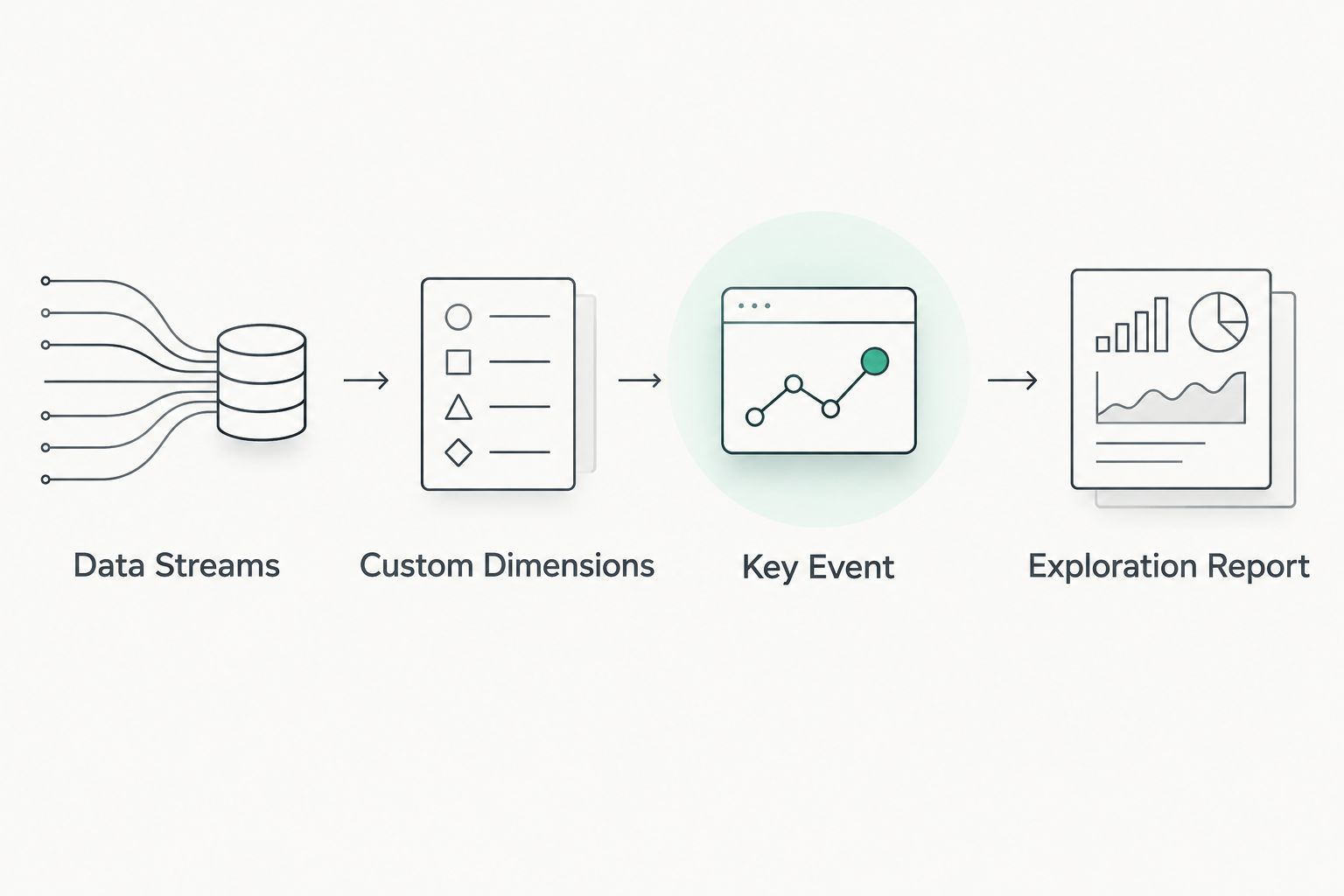
Variant workflow: syncing test launches back into GA4 automatically
Some teams want GA4 to log a marker event the moment a new experiment goes live, not just when a visitor sees it. Set this up whenever you want a clean audit trail of every test launch alongside your traffic data.
- In Google Tag Manager, create a new tag using the GA4 Event tag type.
- Name the event
experiment_launchand add parameters forexperiment_idandlaunch_date. - Set the trigger to fire on your testing tool's launch webhook or on page load of the experiment's target URL for its first day live.
- Publish the container and confirm the event in GA4 DebugView.
Expected result: every new test creates a timestamped experiment_launch event in GA4, making it easy to line up a conversion dip or spike against the exact day a variant went live.
“A test result you can’t line up against a real GA4 timestamp is a guess with a confidence interval attached.”
Troubleshooting
- Data shows in your testing tool but not in GA4: recheck the Measurement ID for typos and confirm consent mode isn't blocking analytics storage for the traffic segment you're testing.
- Custom dimension shows "(not set)" for older sessions: this is expected — dimensions don't backfill. New data populates going forward once the dimension is registered correctly.
- Reports show "(other)" instead of variation names: GA4 applies data thresholding when a segment doesn't have enough volume. Low-traffic experiments running under a few hundred conversions per variant hit this constantly — widen the date range or combine similar variants before drawing conclusions.
- Realtime numbers don't match the testing tool's live count: GA4's standard reports process on a 24-48 hour delay while Realtime only reflects the last 30 minutes; comparing a mid-flight test against the wrong report window produces false mismatches almost every time.
- Duplicate
experiment_impressionevents: usually caused by firing the event from both the testing tool's native snippet and a GTM tag at the same time. Pick one source and remove the other.
Get your CRO pipeline built right
Prospekt sets up the tracking so every test result holds up in a strategy review.
Customize your workflow
Once GA4 and your testing tool talk to each other, the next move is building a repeatable test calendar instead of running one-off experiments. The CRO for SaaS startups guide covers how to prioritize which pages to test first and how many concurrent experiments a mid-size team can realistically run without cannibalizing traffic between them.
Teams further along can extend this same GA4 connection into server-side tagging for more reliable event capture on iOS traffic, or push experiment results into a BigQuery export for longer-term win-rate tracking across a full year of tests. Neither move requires ripping out what you built in the steps above — both sit on top of the same Measurement ID and custom dimension setup.
FAQ
What is a google analytics cro testing workflow?
It’s the connection between GA4 and an A/B testing tool so experiment impressions and conversions report inside the same analytics property. This removes the need to manually reconcile two separate dashboards after every test.
Do I need Google Optimize for this workflow?
No. Google Optimize was sunset and this workflow instead connects GA4 directly to a standalone testing tool like Optimizely, VVO, or Convert through the Measurement ID and custom dimensions.
Why does my experiment data show ‘(not set)’ in GA4?
The custom dimension for Experiment ID was likely created after the test already started collecting data. GA4 custom dimensions never backfill past sessions, so only data from creation forward populates correctly.
How long does GA4 take to show experiment results?
Realtime reports update within about 30 seconds, but standard exploration reports take 24-48 hours to fully process. Compare live tests against Realtime, not the standard report, if you need same-day numbers.
Why do my GA4 reports show ‘(other)’ instead of variation names?
GA4 applies data thresholding to protect user privacy when a segment doesn’t have enough sample size. Low-traffic experiments hit this frequently and need a wider date range or combined variant groups to read cleanly.
Can I track multiple concurrent experiments in one GA4 property?
Yes, as long as each experiment sends a distinct Experiment ID value on the same custom dimension. The exploration report breaks results down by that value automatically without extra setup.
Is this workflow different for e-commerce sites?
The setup steps are identical, but e-commerce sites should map the key event to a purchase or add-to-cart event with value parameters attached so revenue-per-variation shows up in the same exploration report.
Should an agency set this up or can a marketing team do it in-house?
A team with GA4 admin access and basic GTM experience can follow these steps directly. Agencies get involved mainly when custom dimension scoping or server-side tagging is already broken from a previous setup.
One last thing
The thresholding issue trips up more teams in 2026 than any GA4 update has — it's not a bug, it's GA4 protecting small samples by default, and the fix is almost always a wider date range, not a support ticket. Check your Experiment ID dimension's scope before you launch a single test; a session-scoped dimension on an event-scoped parameter is the quiet failure that makes three weeks of test data unusable.
Related guides
- CRO for SaaS startups: the complete 2027 guide
- Best conversion rate optimization agencies compared
- WordPress to answer engine visibility: the complete 2027 workflow
- Best organic SEO agencies in 2026